
Signals & momentum · Regime confirmation
Vector Shift Matrix
See the active directional regime, its confidence, and the moment it shifts.
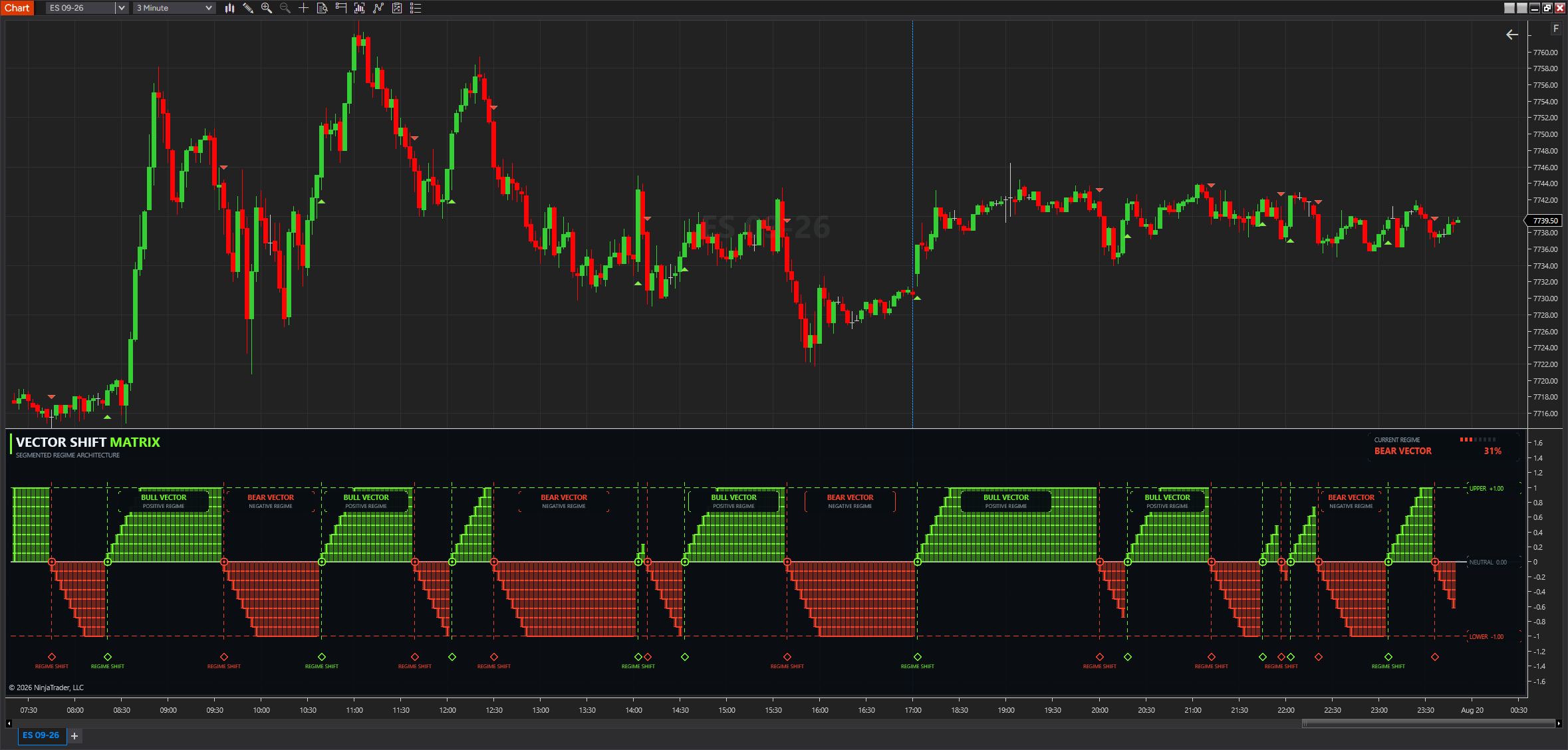
Presents bull, bear, and neutral market states in a segmented matrix with confirmed shift markers, live preview status, and a confidence read for disciplined context.
The 60-second read
What Vector Shift Matrix adds to the stack.
Read bull, bear, and neutral states at a glance.
Wait for a blinking live preview to become a confirmed shift.
Use confidence as context and Trade Shield as the direction gate.
Best used forConfirming directional state before acting
Keep in mindA live preview is not a confirmed shift. Wait for the bar to close and align the read with your trade plan.
What's in this guide
FLB Vector Shift Matrix turns the current chart state into a clear bull, bear, or neutral read, with confidence, shift markers, and optional alerts. This guide explains setup, display controls, and the practical reading workflow. What it does Install & activation Adding Vector Shift Matrix to a chart Settings reference Reading the matrix Alerts Trade Shield comes first Updates & support are proprietary and intentionally not documented.
What it does
FLB Vector Shift Matrix gives you a fast, visual answer to three questions: what is the current directional state, how established is it, and has a new shift actually confirmed? The lower panel separates the chart into BULL VECTOR, NEUTRAL VECTOR, and BEAR VECTOR regions. A matrix trail shows the active state across recent bars, while the status card shows the current state and confidence at a glance. Read What you see State Green for bullish, red for bearish, and gray for neutral.
Confidence A 0-100% status reading for the state currently on display. Shift A bull or bear marker when a new directional state confirms. Live preview Blinking BULL VECTOR or BEAR VECTOR text while the active bar is still unconfirmed. "Read the state. Wait for confirmation. Trade only what the regime allows." Vector Shift Matrix is a read-only chart indicator. It displays states and alerts; it never places orders.
Install & activation
Install with the Windows Control Center
Download the Windows application, sign in on the NinjaTrader PC, then install or update Vector Shift Matrix from the NinjaTrader area. Do not manually import an FLB package.
Download Windows Control Center ↓Connect with the Web Control Center
For any TradingView access included with your membership, open Connections, link the exact TradingView username, and sync the available script grants.
Open Web Control Center ↗Adding Vector Shift Matrix to a chart
Add FLB Vector Shift Matrix like any NinjaTrader indicator. Step Do this Right-click your chart Indicators... Find FLB Vector Shift Matrix in the list and double-click to add it. Adjust the settings (section Vector Shift Matrix), then click OK. Start with the defaults. Change one group at a time, then save a NinjaTrader template once the panel looks and responds the way you want. Vector Engine Setting Default How to use it Length Lower values make the read quicker; higher values make it steadier.
Boundary Threshold 2.0 Lower values allow earlier shifts; higher values require a more decisive move. Smoothing Lower values react faster; higher values produce a calmer read. Matrix Structure Setting Default How to use it Bars To Full Strength Controls how quickly a confirmed state fills to full visual strength. Vertical Segments Sets the number of stacked cells in each matrix column. Cell Gap (Pixels) Sets the spacing between matrix cells. Matrix Opacity Sets matrix fill visibility.
Layout Setting Default How to use it Show Dark Panel On Show or hide the dark panel background. Panel Opacity Set the panel background opacity. Show Header + Status On Show or hide the title and live status card. Show Matrix Grid On Show or hide the matrix guide lines. Show Regime Labels On Show or hide bull, neutral, and bear labels. Show Shift Markers On Show or hide shift labels in the matrix panel.
Signals & live confirmation
Setting Default How to use it Show Price Signals On Show or hide bull and bear markers on the price panel. Signal Offset (Ticks) Move price markers farther from or closer to the bar. Blink Unconfirmed Vector On Blink the direction label while a live-bar shift is only a preview. Blink Interval 500 ms Set the speed of the unconfirmed-state blink. Alerts Setting Default How to use it Enable Signal Alerts Off Master switch for Vector Shift Matrix alerts. Alert On Bull Shifts On Allow alerts for confirmed bull shifts.
Alert On Bear Shifts On Allow alerts for confirmed bear shifts. Alert Sound File Alert1.wav Choose a NinjaTrader sound, an absolute.wav path, or blank for a silent log entry. Alert Rearm (Seconds) Set the minimum wait before the same alert can fire again. Colors Bull Vector, Bear Vector, Neutral Vector, Accent, Panel Background, Primary Text, Muted Text, and Grid are appearance controls only. Changing them does not change the indicator read.
Reading the matrix
Use a simple sequence: state first, confirmation second, confidence third. 1. Read the current state — BULL VECTOR — bullish directional state. Favor long-side planning only when the broader regime agrees. — BEAR VECTOR — bearish directional state. Favor short-side planning only when the broader regime agrees. — NEUTRAL VECTOR — no directional edge from the matrix. Wait for a confirmed shift instead of forcing a trade. 2. Separate preview from confirmation During a live bar, BULL VECTOR or BEAR VECTOR may blink.
That is an unconfirmed preview, not a completed shift. When the bar closes and the state confirms, the label becomes steady and the shift marker is retained. 3. Use confidence as context The status card reports confidence from 0% to 100%. Use it to compare a fresh state with a more established one; do not treat the percentage as a standalone entry signal. A practical workflow 1 Check the Trade Shield regime before considering direction. 2 Wait for the matrix state to agree with that regime.
3 Let a blinking preview become a steady, confirmed shift. 4 Use price structure and your normal risk plan for the actual entry and exit. Do not enter only because the label blinks or confidence is high. A closed-bar confirmation and your normal setup rules still come first.
Alerts
Alerts are off by default. Enable them only after the chart settings are settled so the Alerts Log and sounds stay intentional. Alert Fires when Bull Shift A bullish state shift confirms. Bear Shift A bearish state shift confirms.
Trade Shield comes first
Every FLB read is filtered through one gate first: the Trade Shield regime — the market's current permission slip: longs-only, shorts-only, or no entries. Vector Shift Matrix shows you the levels and the read. Trade Shield tells you whether you're allowed to act. Use them in that order, every time: — Regime says longs-only — act only on long-side shifts. — Regime says shorts-only — act only on short-side shifts. — Regime says no entries — stand down, even on a clean read.
A great setup in the wrong regime is still a coin flip. If the regime and the Vector Shift Matrix read disagree, the regime wins. Trade Shield is the first gate before acting on any FLB signal — it is built to stop you from fading your own system.
Updates & support
Updates for Vector Shift Matrix are announced through the Control Center. Use the Windows Control Center to install NinjaTrader updates; use the Web Control Center to manage TradingView access.
For product questions, access problems, or feature requests, sign in to the Web Control Center and open Support. This is the support path for every member, including NinjaTrader users. Create a ticket there and return to the same section to follow its status and replies.